

Security
Keeping files safe on a flash drive: backups, encryption and found drives
A flash drive is easy to lose, so anything on it needs a second copy and anything private needs encryption. Never plug in a drive you found, and wipe your own before it leaves your hands.
Why is a lost drive the biggest risk?
CISA, the federal cybersecurity agency, says it plainly in its tip on USB drives: the biggest risk is that drives are easily lost or stolen. A stick the size of a house key has no screen lock, no owner's name and no way to call home. Whoever picks it up off a train seat gets whatever was on it. And whatever lived only on that drive is gone for you.
Two habits cover most of that risk. With a second copy, losing the drive costs you a drive and nothing else. Encryption means the finder gets a piece of plastic, not your tax return.
Keep a second copy somewhere else
Treat the flash drive as the copy that travels, never as the only copy. The same files belong in at least one other place: the laptop they came from, cloud storage, or a second drive kept at home. A third copy in another building covers the fire or the burglary that takes the laptop and the drive together.
Size the backup drive to the folder rather than to a guess. Five thousand phone photos at 4 MB each come to 20,000 MB, about 20 GB, and a 32GB drive keeps roughly 93% of its stated size after formatting, close to 29.8GB. That fits with room left, while a 16GB drive would not. The table on how much fits on a flash drive runs the same sums for every size from 16GB to 2TB.
Speed decides whether a weekly backup keeps happening. The SanDisk Extreme PRO USB-A prints a write speed of up to 380 MB/s, so a 100 GB folder takes about 263 seconds at that rate, under five minutes. A USB 2.0 stick near 30 MB/s needs about 3,333 seconds for the same folder, close to an hour. Small files copy slower than one big file on any drive, so a folder of thousands of documents will take longer than those sums suggest. The high-speed flash drives are the ones built for big backups.
Software password or a hardware keypad drive?
An encrypted drive stores your files as scrambled data that only the right password or PIN turns back into documents and photos. There are two ways to get there, and they differ in where the work happens.
Software encryption runs on the computer. A program from the drive maker, or the encryption built into the operating system, asks for a password each time the drive is plugged in. It adds nothing to the price of the drive, but the drive opens only on computers that can run that software, which can rule out a borrowed laptop or a different operating system.
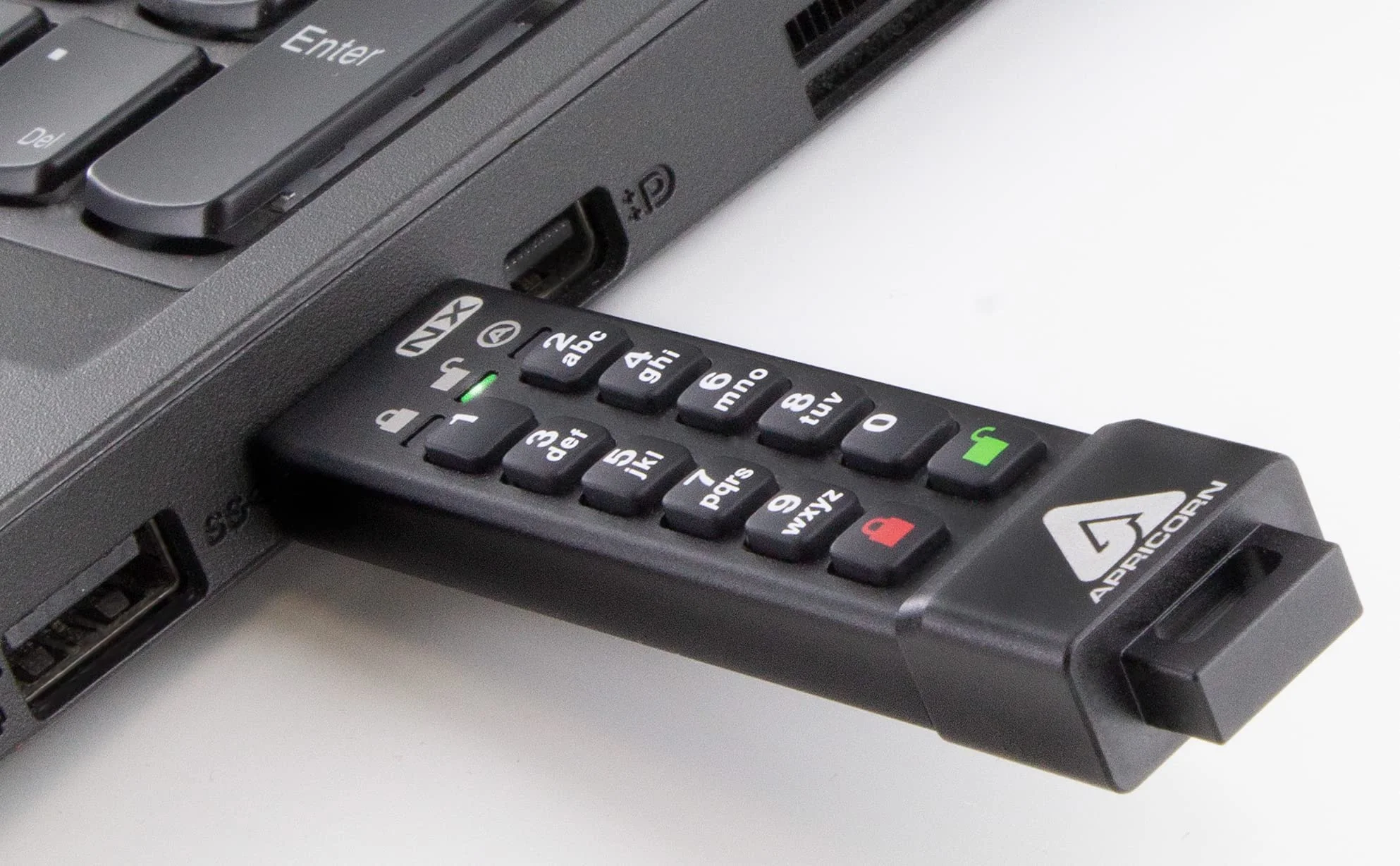
Hardware encryption happens inside the drive itself. Keypad models take a PIN on buttons on the drive's body before they connect, so the computer sees an ordinary drive once it is unlocked, and no app has to be installed anywhere.
| Drive | What a finder sees | What you need to open it | Works on any computer? |
|---|---|---|---|
| Plain drive | Every file, the moment it is plugged in | Nothing | Yes |
| Software-encrypted drive | Scrambled data, or a prompt for a password | The password, on a computer that runs the software | Only where that software runs |
| Hardware-encrypted keypad drive | A locked drive that shows no files | The PIN, typed on the drive itself | Yes, no software needed |
Both kinds share one rule: the password is the only way in. Forget it and the files stay locked for good. Many keypad drives also wipe themselves after a run of wrong PINs, which is one more reason the second copy matters most on an encrypted drive. The Apricorn Aegis Secure Key 3 NX on our encrypted drives shelf is a USB-A drive that runs at USB 3.0 and comes in sizes from 4GB to 512GB.
What does FIPS 140-3 validation mean?
FIPS 140-3 is the federal standard for encryption modules, the part of a device that does the scrambling. NIST runs the Cryptographic Module Validation Program, which validates modules against that standard and keeps a list of the ones that passed. A drive sold as FIPS validated should point to a certificate on that list, and the certificate names the module and the version it covers.
The older standard, FIPS 140-2, still appears on boxes. Modules validated to it could be used in new systems until September 21, 2026. After that date they moved to the Historical list, which covers existing systems only. If an employer or a client contract asks for FIPS validation, a drive bought now should carry FIPS 140-3, and your IT team will know which security level it needs.
Validation speaks about the encryption module. It does not stop a drive from being lost, copied from while it sits unlocked, or opened with a PIN like 1234. EasyFlash prints what each maker publishes about its drive, and on an encrypted drive the certificate number is the one figure worth looking up yourself before a work purchase.
Why should a found drive never go into your computer?
Attackers use USB drives to spread malware, CISA warns, and some drives have even been infected during production, before anyone opened the box. Curiosity does the rest: someone plugs in the found drive to see whose it is, and the computer runs whatever was waiting on it. The agency's advice is short. Do not plug an unknown drive into your computer, and at work, hand it to your security or IT team.
The same tip lists the habits that keep your own drives from carrying trouble:
- Disable Autorun, so a drive cannot start a program the moment it connects.
- Keep security software and system updates current on every computer the drive visits.
- Separate work and personal drives. A family photo stick has no business in the office laptop, and a work drive should not come home to the kids' computer.
- Protect private files with a password or encryption, and keep a backup of them.
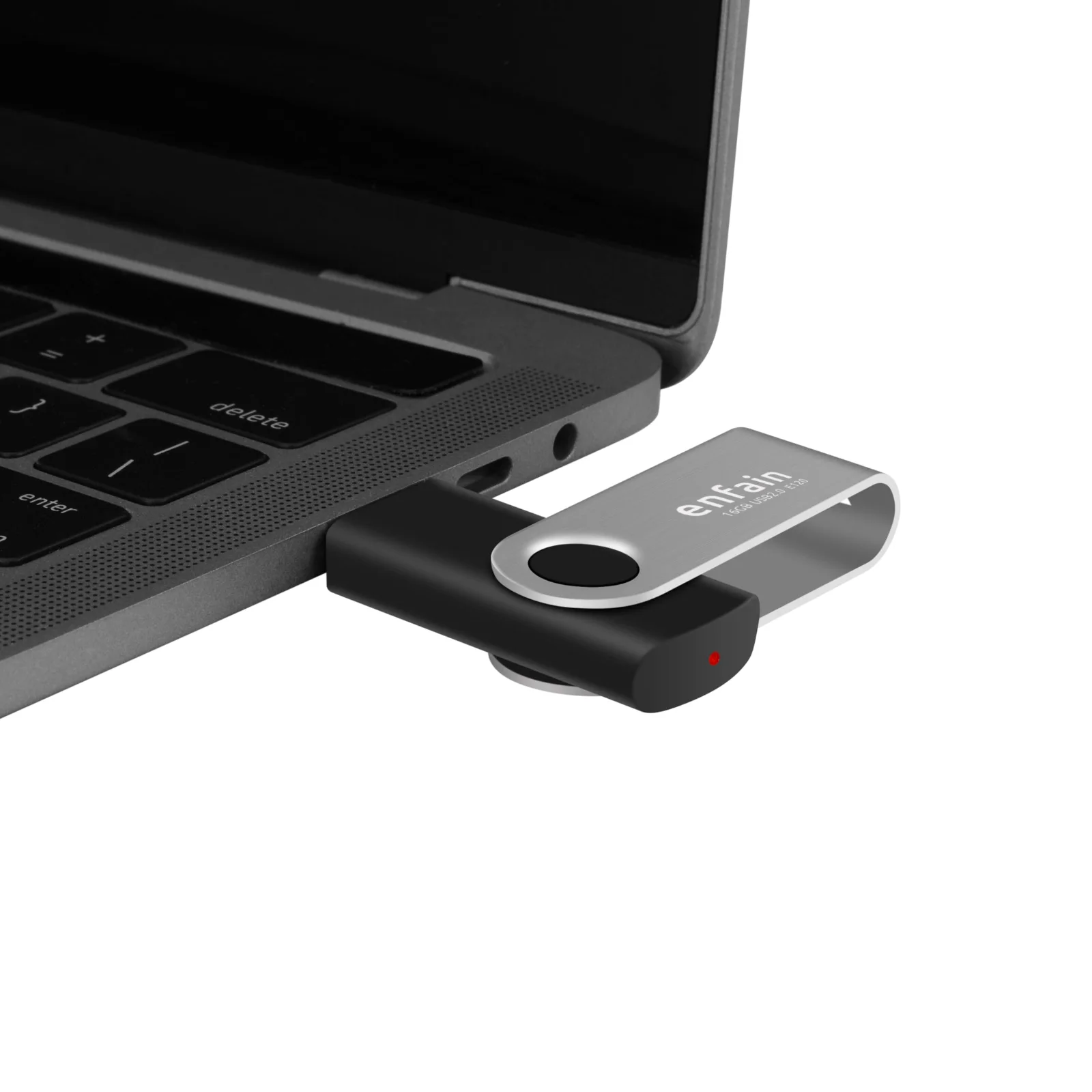
Labels or separate colors make that split easy to keep. A multi-pack in mixed colors gives each job its own drive, so the client folder never shares a stick with holiday photos.
How do you wipe a drive before giving it away?
Deleting files or running a quick format clears the list of files but can leave the data itself in place, and free recovery tools can often bring it back. A drive passed to a friend, sold or dropped in a donation box needs more than that.
NIST SP 800-88 Rev. 2, published in September 2025, is the federal guide to making data on storage media unrecoverable before reuse or disposal. It is written for organizations, with procedures and records to match. For a drive of your own, three steps cover most cases:
- Copy off anything you want to keep.
- Run a full format rather than a quick one, which writes over the whole drive and takes far longer, or use the maker's secure erase tool if the drive has one.
- For anything sensitive, such as tax records, client files or medical papers, destroy the drive instead of passing it on: cut or crush it through the memory chip.
Flash memory keeps spare cells that the computer cannot address directly, so even a full overwrite may miss a few of them. Physical destruction is therefore the answer for the drives that held the files that would hurt most in a stranger's hands. The formatting steps for Windows and for a Mac are in our guide on formatting a flash drive.