

Speed
Flash drive speed explained: MB/s, USB 3.2 Gen 1 and Gen 2
What MB/s on a drive box means, how it relates to the Gbps of a USB port, why USB 3.0 and USB 3.2 Gen 1 are one speed, and how long a 10 GB folder takes at each.
What does MB/s mean?
MB/s stands for megabytes per second. Drive boxes use it for how fast files come off the stick or go onto it. Ports, on the other hand, are rated in bits: megabits or gigabits per second, written Mbps and Gbps. One byte is eight bits, so a megabyte per second equals 8 megabits per second, and dividing a port rating by eight turns it into the unit on the box. Drive makers also count in round thousands, so one megabyte on the box is 1,000,000 bytes. Windows reports copies in slightly larger units, so its copy dialog can show a lower MB/s than the box for the very same transfer.
USB 2.0 runs at 480 megabits per second, which divides to 60 MB/s on paper. Real USB 2.0 flash drives read at about 30 to 40 MB/s, because part of the line carries the protocol that wraps the data. A 5 Gbps port divides to 625 MB/s and delivers about 400 to 450 MB/s with a flash drive. On a 10 Gbps port, the practical figure comes near 1,000 MB/s.
That arithmetic also flags figures that cannot both be true. When a box pairs USB 2.0 with a read speed above 60 MB/s, the port caps the drive below the printed number, whatever the drive inside could do.
Why does one USB speed have so many names?
USB versions were renamed twice, and makers kept the old names on their boxes. The USB 3.2 specification folded every earlier 3.x version into one family with three transfer rates: 5 Gbps, 10 Gbps and 20 Gbps. Each new device still works with older ports and cables, and the connection runs at the speed of the slower end.
| Transfer rate | Names you will see | Plug | Flash drives in practice |
|---|---|---|---|
| 480 Mbps | USB 2.0, Hi-Speed USB | USB-A, USB-C, micro-USB | about 30 to 40 MB/s |
| 5 Gbps | USB 3.0, USB 3.1 Gen 1, USB 3.2 Gen 1 | USB-A or USB-C | up to about 400 to 450 MB/s |
| 10 Gbps | USB 3.1 Gen 2, USB 3.2 Gen 2 | USB-A or USB-C | up to about 1,000 MB/s |
| 20 Gbps | USB 3.2 Gen 2x2 | USB-C only | none on our shelves |
Practical figures are typical of flash drives with large files. They are not limits of the port itself.
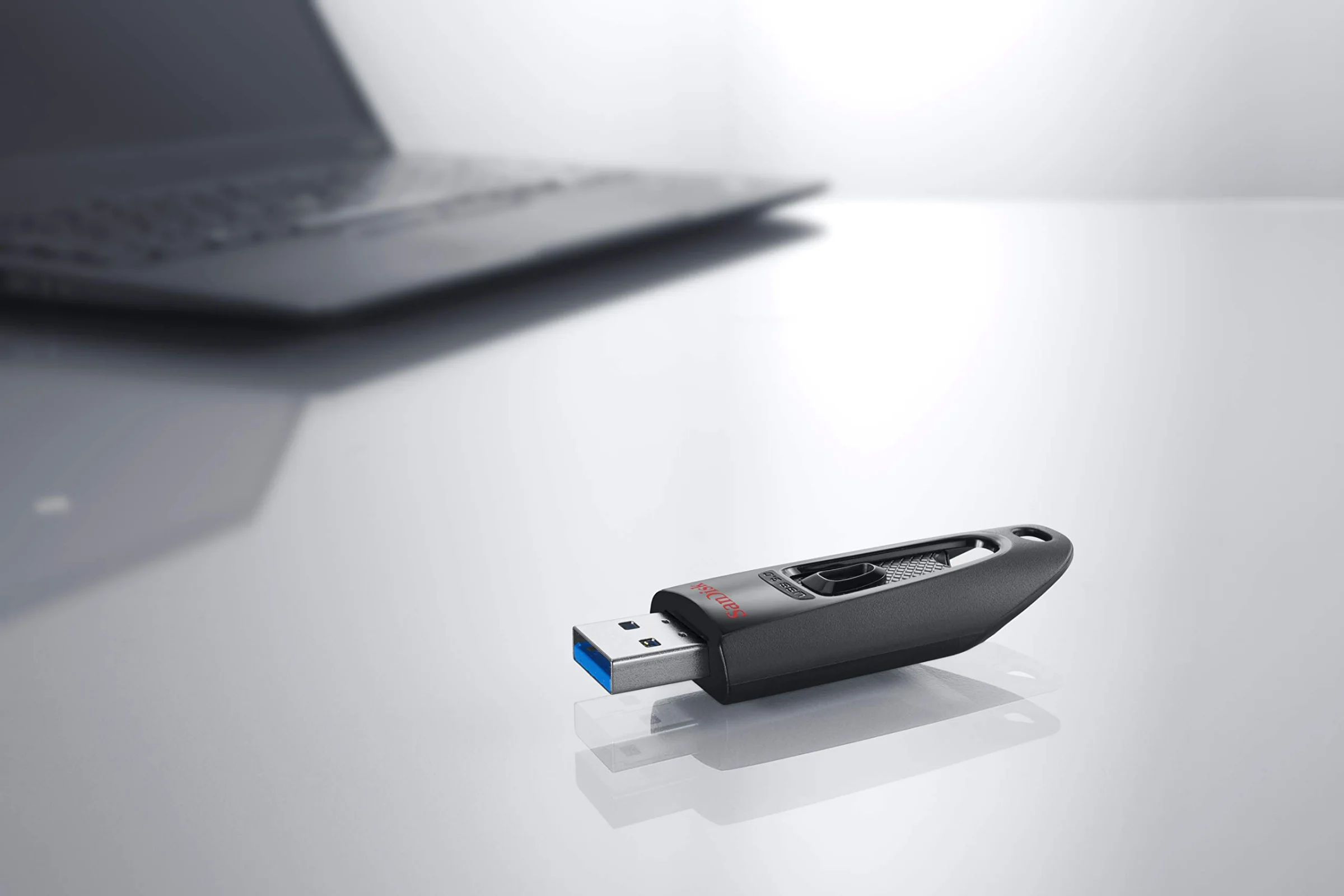
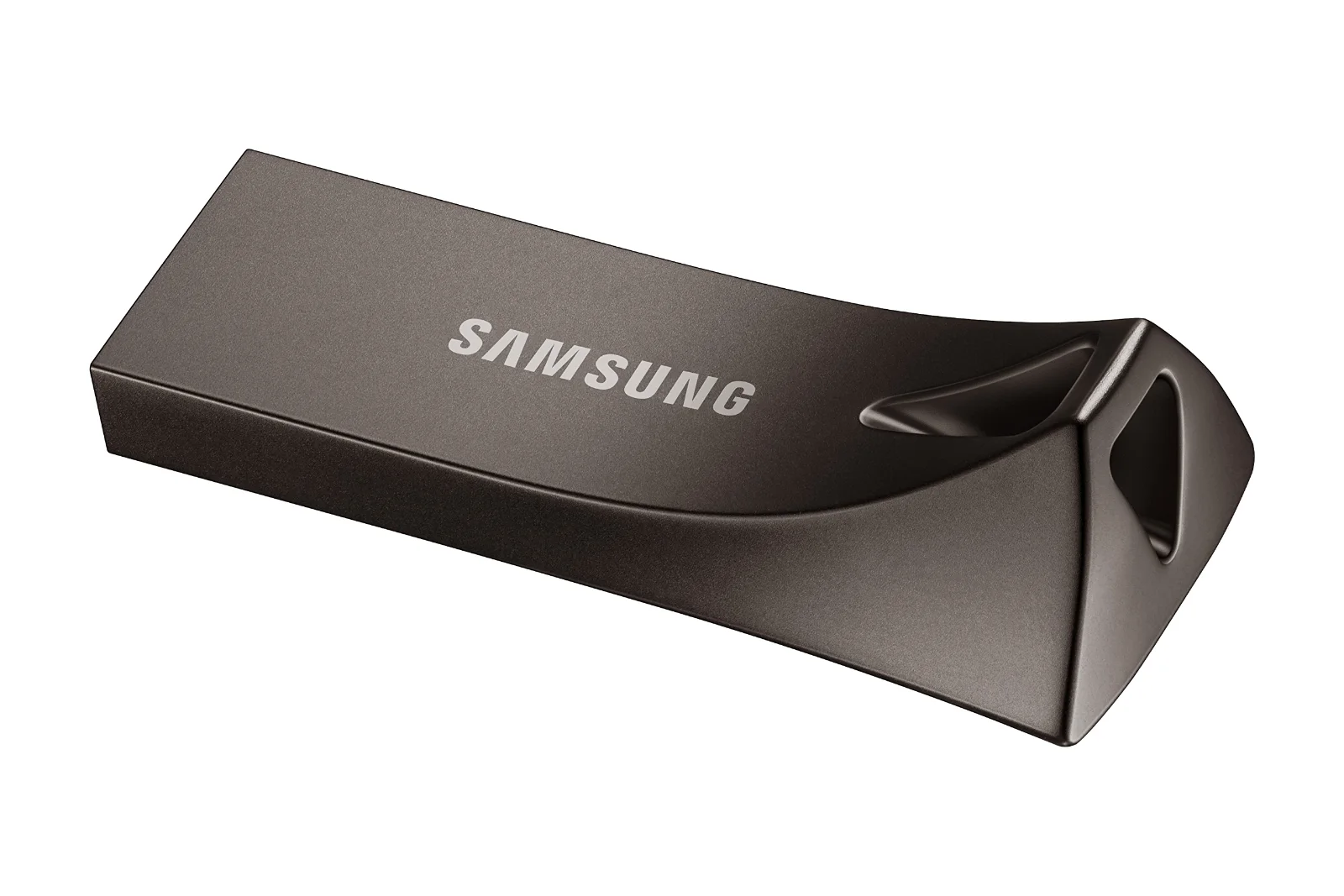
So a drive labeled USB 3.0 and one labeled USB 3.2 Gen 1 share the same 5 Gbps ceiling. The SanDisk Ultra Fit and the Samsung BAR Plus both print USB 3.2 Gen 1 and read at up to 400 MB/s, close to the top of that tier. On USB 3.2 Gen 2, the PNY PRO Elite V3 reads at up to 1,000 MB/s, more than a 5 Gbps port can carry.
The 20 Gbps rate uses two 10 Gbps lanes at once and works only over USB-C. None of the drives at EasyFlash is rated for it, so for a flash drive the useful question is simpler: is your port 5 Gbps or 10 Gbps?
The shape of the plug says nothing about the speed behind it. USB-C is a connector, not a version: the same oval carries USB 2.0 on many budget phones and 10 Gbps on recent laptops. Look for the rate in the spec sheet of the computer rather than in the outline of the port. Drives on the USB-C shelf print their USB generation on each card, so the drive side of the sum is easy to read.
Why is “up to” a best case?
Makers measure read speed with large files and a fast port, then print the highest figure as "up to". Your copy gets near it when you pull one big video file off the drive. A folder of thousands of photos runs slower, because the computer opens, records and closes every file, and each of those steps costs time that the bytes themselves do not.
Capacity moves the figure too. Within one model, the smallest sizes are often slower than the large ones, since they hold fewer flash chips to read from in parallel. Heat plays a part on long copies: a small drive can slow down after minutes of steady work. The printed figure therefore describes the first stretch of a big transfer better than the last.
None of this makes the number useless. Two drives measured the same way still rank the same way, and a stick rated at 400 MB/s will beat one rated at 100 MB/s on almost any job you give them.
Why is writing slower than reading?
Flash memory has to erase a block before it can store new data in it, and the drive's controller juggles that work while it writes. Reading skips all of it. Spec sheets that print both numbers show the cost plainly: the Samsung FIT Plus reads at up to 300 MB/s and writes at up to 30 MB/s.
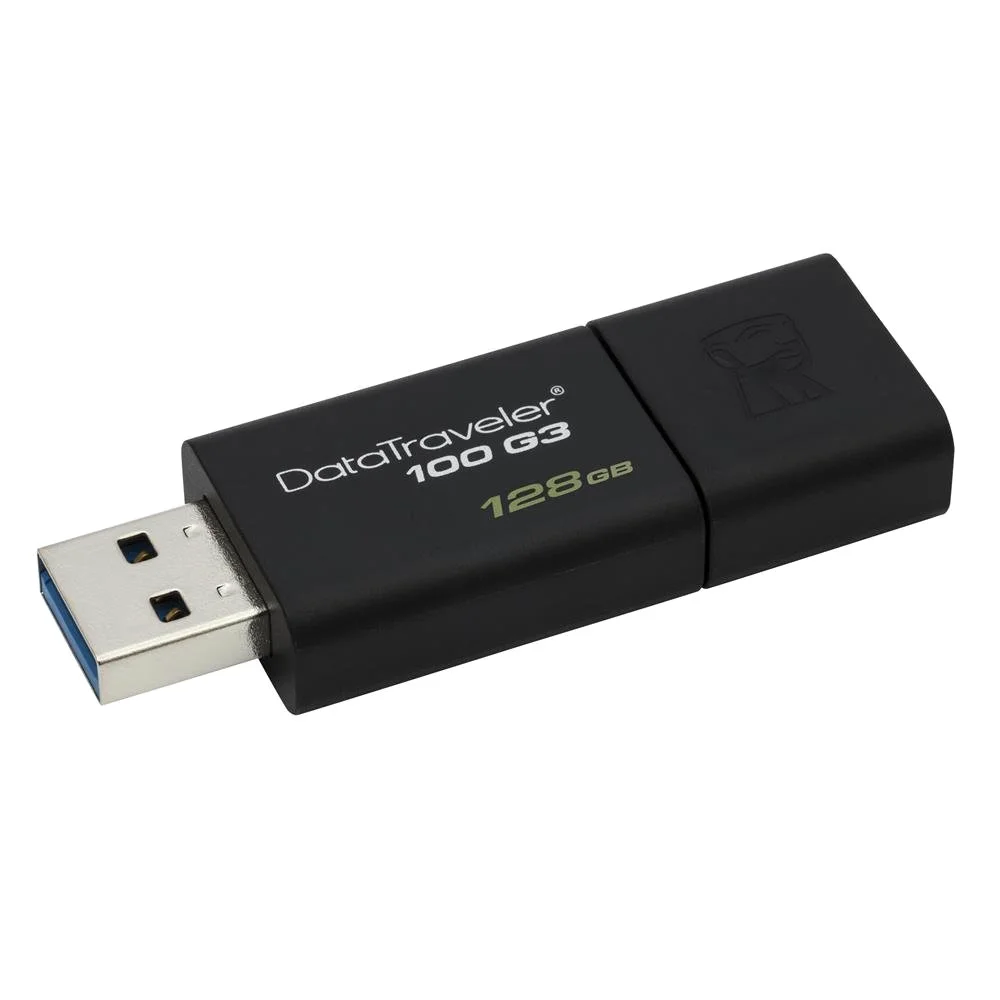
Some drives narrow the gap. The SanDisk Extreme PRO USB-A writes at up to 380 MB/s against a 420 MB/s read, and the Lexar D50E Solid State Dual Drive prints 400 MB/s both ways. If you mostly copy footage onto a drive, the write figure is the one to compare. When the maker prints no write figure, there is nothing to compare at all.
Why is a fast drive slow in an old port?
A USB link runs at the speed of its slower end. Put the 400 MB/s Samsung BAR Plus into a USB 2.0 port and it reads at about 30 to 40 MB/s, no faster than a basic stick. The same happens behind a USB 2.0 hub or a cheap USB-C adapter that only carries USB 2.0 data. Front ports on older desktop cases are often wired for USB 2.0 even when the back panel offers USB 3.x, so the port nearest your hand is not always the fast one.
Finding out what your port does takes a minute. Many laptops mark fast ports with SS or SS10 printed beside them. Windows lists USB 3.x controllers by name in Device Manager. On a Mac, System Information shows the speed of each connected device, and the page on a flash drive for your Mac covers the plugs each model has. If a copy crawls, moving the drive to another port is the first thing to try.
How long does a 10 GB folder take?
Time is size divided by speed. A 10 GB folder is 10,000 MB by the drive maker's count, so at 100 MB/s it takes 100 seconds. The table runs the same sum for five steady speeds, from a USB 2.0 stick to a 1,000 MB/s drive on USB 3.2 Gen 2.
| Speed | Time | Where you meet it |
|---|---|---|
| 30 MB/s | about 5 minutes 33 seconds | a USB 2.0 stick, or any drive in a USB 2.0 port |
| 100 MB/s | 1 minute 40 seconds | PNY Turbo Attaché 3 or Lexar A30E, reading |
| 150 MB/s | about 1 minute 7 seconds | SanDisk Ultra Flair or Ultra Dual Drive, reading |
| 400 MB/s | 25 seconds | SanDisk Ultra Fit or Samsung BAR Plus, reading |
| 1,000 MB/s | 10 seconds | PNY PRO Elite V3 or SanDisk Extreme PRO Dual Drive, reading |
Time = 10,000 MB divided by the speed. Folders of many small files take longer, and writing usually takes longer than reading.
Writing changes the picture. The Samsung Type-C Flash Drive reads at up to 400 MB/s but writes at up to 30 MB/s. Putting the folder on it therefore takes the same five and a half minutes as reading it from a USB 2.0 stick, while reading it back takes 25 seconds. For a weekly video backup, that write figure decides how long you wait.
A 1,000 MB/s drive pays off when the folders are big, the copies frequent and the computer has a 10 Gbps port to feed it. For documents and the odd photo album, a drive at 100 to 150 MB/s finishes in under two minutes. Our high-speed shelf holds every drive at 300 MB/s and up, the capacity table turns gigabytes into photos and minutes of video, and how to choose a flash drive covers plug, size and body.